

How TruTimer Converts Daily Work Activity Into Operational Intelligence
From login to reporting, TruTimer automatically captures activity data and transforms it into actionable visibility for managers and business leaders.
Workflow Steps
Our workflow process is built to enhance collaboration, improve tracking, and deliver consistent results.
-

Employee Login
Employees securely log into the TruTimer desktop application.
One sign-in carries across desktop, web, and mobile — and across every client org a person belongs to — so there are no separate logins to juggle.

-

Select Project or Task
Users select the assigned project, task, ticket, or workflow item before starting work.
That one choice ties every tracked minute to the right client, project, and ticket — so billing and reporting stay clean without manual sorting later.
AI can draft the plan for you — turn a brief into tasks in an editable grid. Prefer to build it by hand? Do that instead. AI is a button, never a gate.

-

Background Activity Tracking
TruTimer monitors work activity in the background without interrupting the user experience.
Nothing to start, stop, or remember — the timer runs itself, so hours don't go missing when someone forgets to hit a button.

-

Automatic Time Capture
Active work duration is recorded automatically and linked to the selected task or project.
Because every minute is already attached to a task, timesheets and invoices build themselves — no end-of-week reconstruction from memory.

-

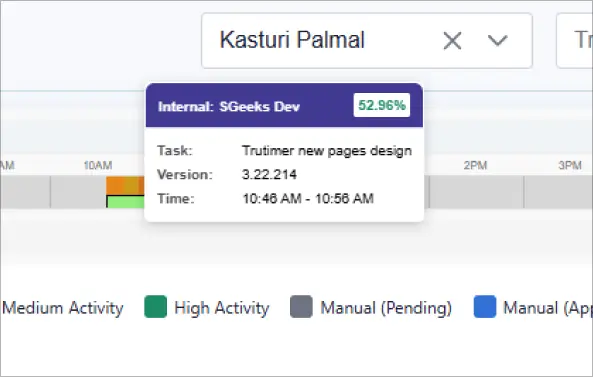
Screenshot & Activity Validation
Periodic screenshots provide contextual visibility into work activity.
Screenshots are optional, configurable, and visible to the people they cover — context for the work, never a tool to police it.

-

Idle Time Detection
Inactive periods are identified and separated from productive activity.
So the hours you bill reflect real focused work — no padding, and no guessing when someone steps away.
-

Reporting Dashboard
Utilization, active and idle time, optional screenshots, and task-level detail roll up into one live view — alongside a 0–100 project health score.
Spot an over-allocated project or a slipping deadline in seconds — and fix the staffing or the scope before it costs you a client.

Stop Guessing. Start Proving.
Validate billable hours, cut productivity leakage, and give managers real data instead of assumptions — see TruTimer on your own workflow in a 20-minute walkthrough.
No credit card required · Go live in days · Cancel anytime